How to Troubleshoot Audio Problems
a. Check the speakers - are they on?
Frequently, the user forgets to turn the speakers on, or has the volume all the
way down. You'll be surprised how many times this happens.
b. Check the connections
- Make sure the speaker
wire is in the right plug on the back of the computer.
- Frequently, the user will have the wire plugged into the microphone
port.
- The plugs are usually color coded, so that if the speakers came with the
machine, you should easily be able to find the right input.
- However, if the speakers did not originally come with the system, the color
coding may be different. Make sure that the speakers are plugged into the
speaker port.
c. Check the speaker icon
- Look for the speaker
icon in the tray. Is it there one present?
- If no, there is no audio driver, or the driver has gone bad.
Or it is not selected to show in the tray. To do this in XP Click start
settings control panel sounds and audio devices. Check place volume icon in
task bar. It is similar in win9x systems.
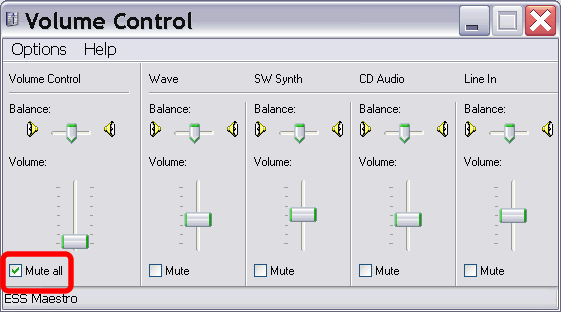
- If there is one, then double-click it. Make sure the volume sliders are
not at the bottom, and that the "mute all"
box is clear.
d.
Check the Control Panel
- Double-click on the
"Sounds" icon. If the Play button is grayed out, there is a
problem with the driver or the adapter itself.
- If the Play button is not grayed out, choose a sound event in the
"Events" field, and click the play button to test the sound.
- Double-click the "System" icon and go the device manager.
- Expand the "Sound, video, and game controllers" entry.
- If there are any yellow exclamation points, there is a problem with the
driver, or there is a device conflict.|
- If there is a red "x" by any of the entries, that controller has
been disabled. You can re-enable it in the control panel.
e. Try another set of speakers
- Check to see if the
speakers have died. Try test speakers, a head set from a walkman plugged
directly into the sound card will work
- If the test speakers work, the student needs new speakers.
f.
If necessary, download and
re-install the audio drivers
- The process of
identifying the adapter is the same as for network adapters.
- Review the process of identifying non-integrated adapters.
- Review the process of identifying integrated adapters.
- Download the file to the desktop and double-click to install it.
- Some common audio driver manufacturers are: Creative (Sound Blaster),
Yamaha, Turtle Beach
- Major vendor sites contain audio drivers for their integrated and
non-integrated OEM cards.