Windows XP: Your Definitive Lockdown Guide
Windows XP
Professional and what you need to do to be secure. This is a start to finish
article on the fundamentals of OS desktop security – Microsoft style
Lock it down - now!
This will look at the
following items and how to lock them down step by step. This will enable your
XP system to be lean, mean and ready to do battle with attackers of all types.
- Windows XP Professional Configuration Checklist Details
- Verify that all disk partitions are formatted with NTFS
- Protect file shares
- Use Internet Connection Sharing for shared Internet
connections
- Enable Internet Connection Firewall
- Use software restriction policies
- Use account passwords
- Disable unnecessary services
- Disable or delete unnecessary accounts
- Make sure the Guest account is disabled
- Set stronger password policies
- Set account lockout policy
- Install anti-virus software and updates
- Keep up-to-date on the latest security updates
Verify that all disk partitions are formatted with NTFS
NTFS partitions offer
access controls and protections that aren't available with the FAT, FAT32, or
FAT32x file systems. Make sure that all partitions on your computer are
formatted using NTFS. If necessary, use the Convert
utility to non-destructively convert your FAT partitions to NTFS. Be careful! I
have goofed this up myself so be careful and always make a backup of critical
data, but that should go without saying!

Protect file shares
By default, Windows XP
Professional systems that are not connected to a domain use a network access
model called "Simple File Sharing," where all attempts to log on to
the computer from across the network will be forced to use the Guest account.
This means that network access through Server Message Block (SMB, used for file
and print access), as well as Remote Procedure Call (RPC, used by most remote
management tools and remote registry access) will only be available to the
Guest account. Ok, this is lame and we should change this. To change it, go to:
Start => Programs => Accessories => Windows Explorer and drop down the
Tools menu and select ‘Folder Options’.
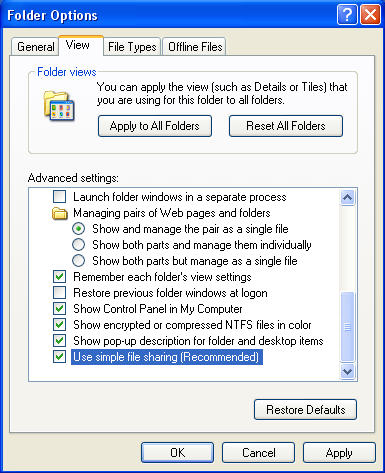
In the Simple File Sharing
model, file shares can be created so that access from the network is read-only,
or access from the network is able to read, create, change, and delete files.
Simple File Sharing is intended for use on a home network and behind a
firewall, such as the one provided by Windows XP. If you are connected to the
Internet, and are not operating behind a firewall, you should remember that any
file shares you create might be accessible to any user on the Internet.
My recommendation is that
you DISABLE IT!
To disable Simple File
Sharing
- Go to Folder Options as viewed above
- Select the View tab
- Go to Advanced Settings
- Clear the Use Simple File Sharing box
- Close out of Folder Options
For more info on File
Sharing with XP, you can visit article Q304040
Enable Internet Connection Firewall (ICF)
ICF provides protection for
Windows XP computers that are directly connected to the Internet, or for the
computers or devices connected to the Internet Connection Sharing host computer
that is running ICF.
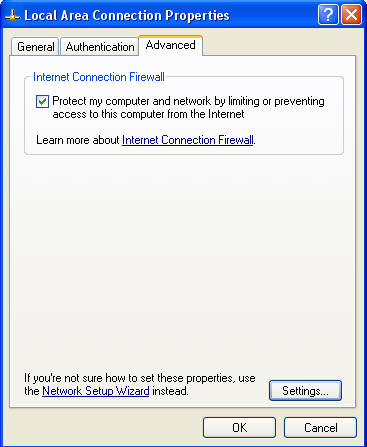
To enable ICF, right-click
an Internet connection in Network Connections, click Properties, click the Advanced tab, and then select the appropriate check box.
I would suggest getting a
real firewall product that is more robust then this, but if this is all you
have, enable it!
Use software restriction policies
Software restriction
policies provide administrators with a policy driven mechanism that identifies
software running in their domain, and controls the ability of that software to
run. Using a software restriction policy, an administrator can prevent unwanted
programs from running; this includes viruses and Trojan horses, or other
software that is known to cause conflicts when installed. Software restriction
policies can be used on a standalone computer by configuring the local security
policy. Software restriction policies also integrate with Group Policy and
Active Directory.

Use account passwords
To protect users who do not
password-protect their accounts, Windows XP Professional accounts without
passwords can only be used to log on at the physical computer console. By
default, accounts with blank passwords can no longer be used to log on to the
computer remotely over the network, or for any other logon activity except at
the main physical console logon screen.
Disable unnecessary services
After installing Windows
XP, you should disable any network services not required for the computer. In
particular, you should consider whether your computer needs any IIS Web services.
By default, IIS is not installed as part of Windows XP and should only be
installed if its services are specifically required. It is my recommendation
that if you don’t need them, disable the following services ASAP:
- Telnet
- Universal Plug and Play Device Host
- IIS (not installed by default)
- Netmeeting Remote Desktop Sharing
- Remote Desktop Help Session Manager
- Remote Registry
- Routing & Remote Access
- SSDP Discovery Service
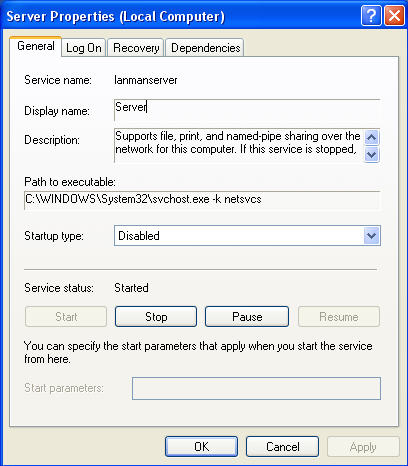
I also recommend that the
server service and computer browser be eliminated if you are on a stand-alone
machine connected to the Internet. There is no practical use for them and leave
you exposed.
Disable or delete unnecessary accounts
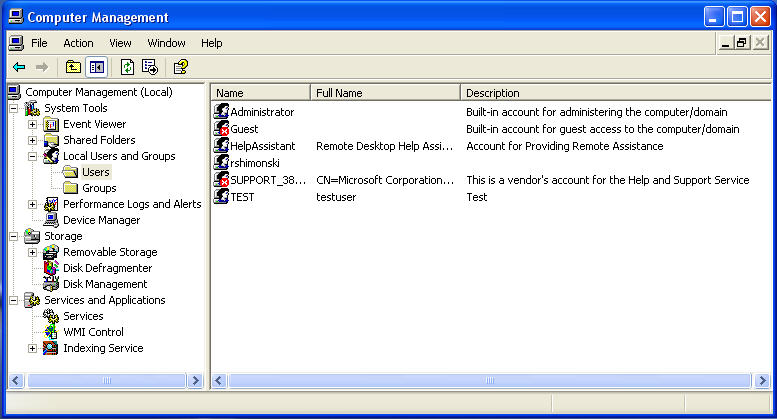
You should review the list
of active accounts (for both users and programs) on the system in the Computer
Management snap-in. Disable any non-active accounts and delete any accounts
which are no longer required.
Make sure the Guest account is disabled
This setting recommendation
only applies to Windows XP Professional computers that belong to a domain, or
to computers that do not use the Simple File Sharing model.
On Windows XP Professional
systems that are not connected to a domain, users who attempt to log on from
across the network will be forced to use the Guest account by default. This
change is designed to prevent hackers attempting to access a system across the
Internet from logging on by using a local Administrator account that has no
password.
Set stronger password policies
To protect users who do not
password-protect their accounts, Windows XP Professional accounts without
passwords can only be used to log on at the physical computer console. By
default, accounts with blank passwords can no longer be used to log on to the
computer remotely over the network, or for any other logon activity except at
the main physical console logon screen. Use the Local Security Policy snap-in
to strengthen the system policies for password acceptance. Microsoft suggests
that you make the following changes:
- Set the minimum password length to at least 8
characters
- Set a minimum password age appropriate to your network
(typically between 1 and 7 days)
- Set a maximum password age appropriate to your network
(typically no more than 42 days)
- Set a password history maintenance (using the
"Remember passwords" radio button) of at least 6
Set account lockout policy
Windows XP includes an
account lockout feature that will disable an account after an
administrator-specified number of logon failures.
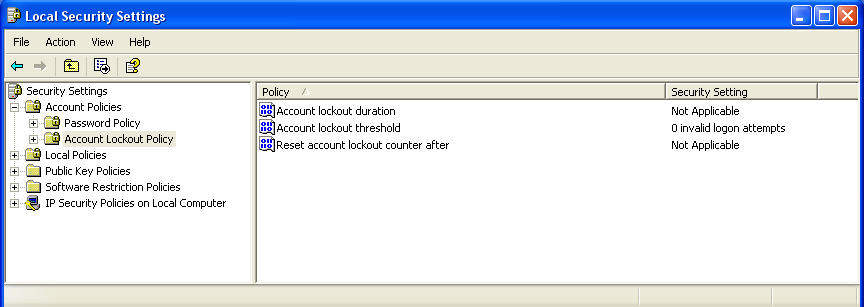
Consider reasonable
settings for your environment and think about how secure your environment needs
to be. If its too much, then users will freak out.
Install anti-virus software and updates
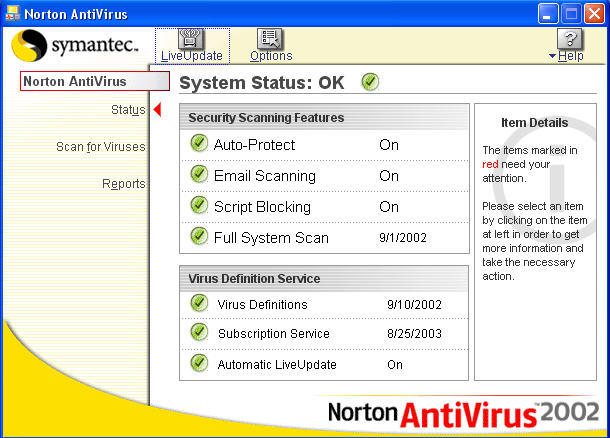
One of the most important
things for protecting systems is to use anti-virus software, and ensure that it
is kept up-to-date. All systems on the Internet, a corporate Intranet, or a
home network should have anti-virus software installed.
Keep up-to-date on the latest security updates
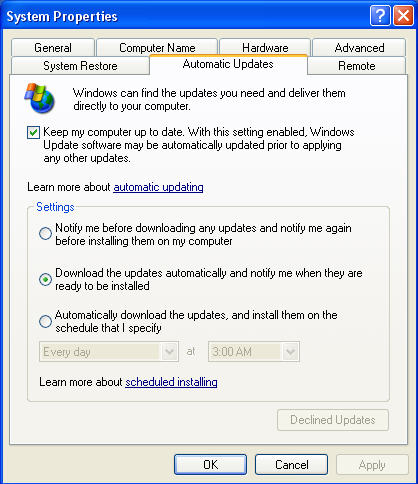
The Auto Update feature in
Windows XP can automatically detect and download the latest security fixes from
Microsoft. Auto Update can be configured to automatically download fixes in the
background and then prompt the user to install them once the download is
complete. To configure Auto Update, click System in Control Panel and select
the Automatic Updates tab. Choose the first notification setting to download
the updates automatically and receive notification when they are ready to be
installed.
In Sum,
Now, you should be able to sleep easy at night knowing your XP system is at least in better security posture than it ever was… you must keep up on your updates though and make sure you virus definitions are also updated. If you do these few things, you will find your XP system way more secure than it ever was.