Connecting To a Bluetooth Cell Phone
The following is an exercise in establishing communication with, and setting up Dial up Networking, (DUN), using a Bluetooth cell phone.
1. From the Bluetooth Manager icon on the taskbar, right click and select “Explore”.
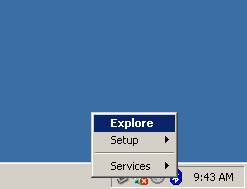
2. Make sure that the customer has Bluetooth enabled on his cell phone and select “Entire Bluetooth Neighborhood”. This will automatically scan for new devices and locate the customer’s cell phone. In the unlikely event that the object is not found, right click in the object window and click “Refresh”.
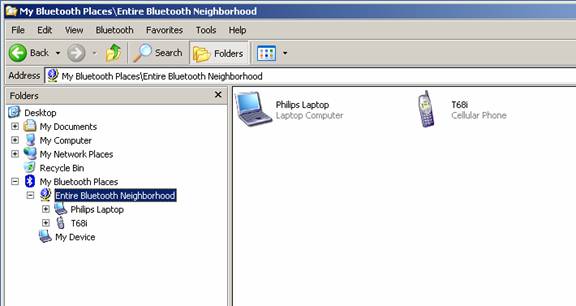
Once the cell phone is discovered, right click on the cell phone icon and select “Discover Available Services. This will show all available options for the cell phone.
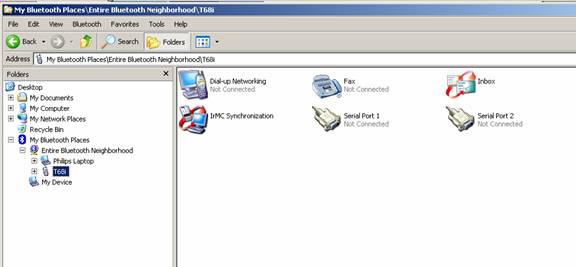
3. It is now time to verify that the cell phone you are using is properly setup. From the cell phone, make sure that the Bluetooth receiver is turned on, and ready to receive Bluetooth signals from other devices.
4. Make the cell phone “Discoverable”.
5. Assign a name to the phone to make it known to other devices.
6. Make the cell phone “Discoverable” for 3 minutes.
7. You should now be able to see you cell phone in the Bluetooth Neighborhood.
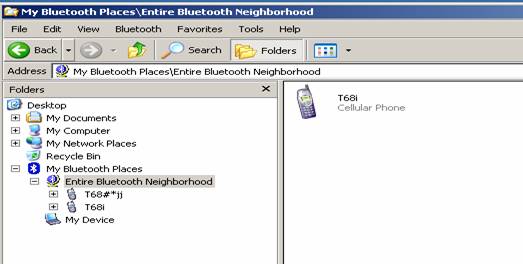
8. It is now time to “Pair” the devices. Pairing allows the cell phone and the laptop to sync and make an active connection. To pair the cell phone with the laptop, from the cell phone select “Bluetooth Manager”, “Paired Devices”.
9. Select “Add Device”, and choose the laptop that you want to use to control the dial up networking connection.
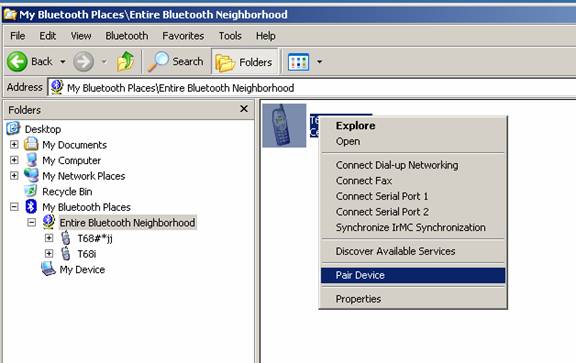
10. It is now time to return to the Bluetooth Manager on the laptop. Select the cell phone from Bluetooth manager and right click the icon and select “Pair Device”.
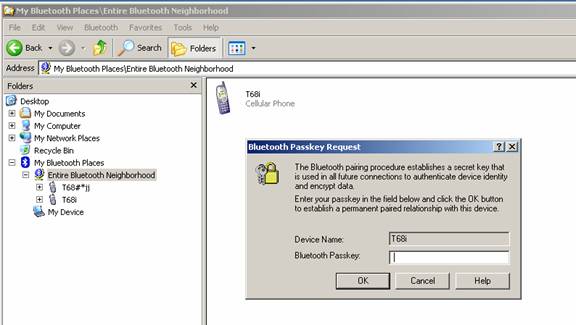
11. You will be prompted to select a “Passkey”, or security code that the cell phone and the laptop will agree upon to initiate the dial up networking session.
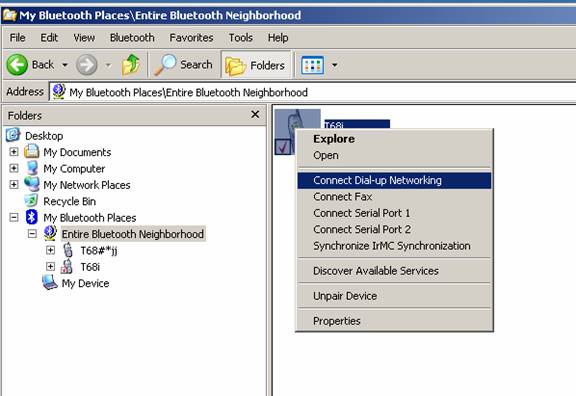
12. You are now ready to setup a Dial up Networking, (DUN), connection. Right click on the Dial up Networking and select “Connect Dial up Networking”.
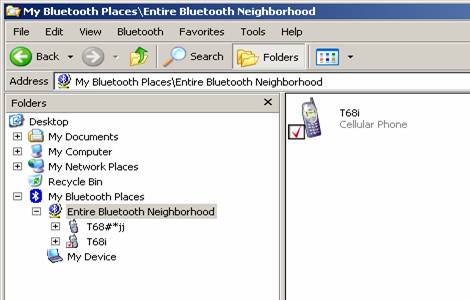
13. When the devices are successfully paired, a “Red Check” will appear at the bottom of the cell phone icon in Bluetooth manager.
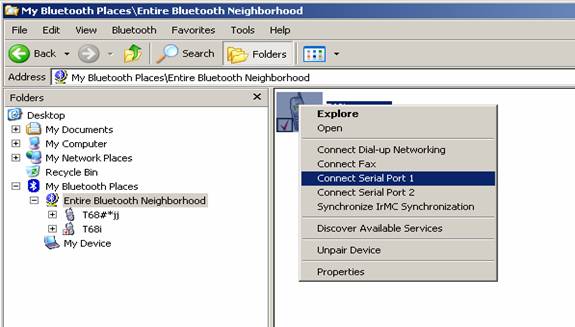
14. It is now time to connect a Serial port for the laptop to use to connect to
the cell phone. To do this, right click the cell phone icon and select,
“Connect
15. When a successful serial port has been established, two “Green Arrows” will appear below the cell phone icon in Bluetooth Manager.
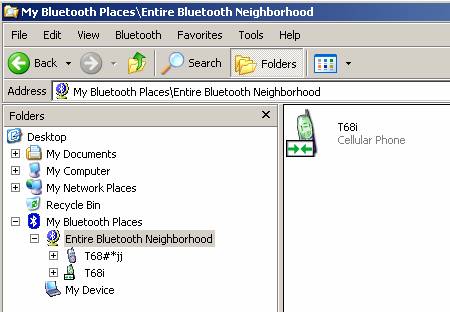
16. It is now time to establish your dial up networking connection. In Bluetooth manager, select the cell phone icon, right click, and choose, “Connect Dial up Networking”.
17. Once a dial up networking session is established, you will be prompted to enter your ISP’s logon name and password verification.
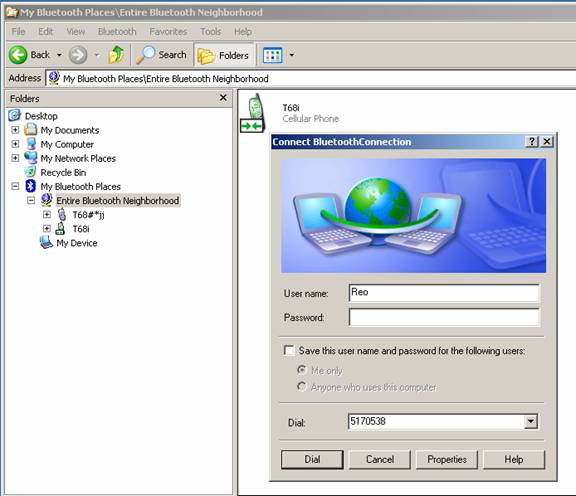
18. You have successfully created a Dial Up Networking session.
It is very important to remember that not all cell phones are the same. Menus may differ and the above steps may not be the same. However; the basic steps to setting up a DUN connection are the same.