Cleaning up your Hard Drive
Over time, your Hard Disk fills up with all kind of stuff, and
before you know it, that drive you bought just a year or so ago, and which
capacity looked great back then, is already alarmingly full. You need a certain
amount of "headroom" or empty space on your hard drive for Windows
95/98 to function properly. Things like the Windows swap file require empty
space on the hard drive for standby utilization and your system can slow down
enormously if it's not available.
First, you should do is run Scandisk if you have not done
so recently... I once ran scan disk on someone's computer and found 86MB of
lost clusters!!! Staggering. You should run this standard maintenance procedure
regularly along with the disk defragmenter. If you are running Windows 95,
Windows 98, Millennium or Windows 2000 you probably get prompted to run it every time
you start up after an illegal or improper shut down (you should always use the Start
> Shut Down routine). You may have many lost clusters of total garbage
hiding there. Unless you suspect there may be something, there you need that
you have lost; I would recommend simply deleting any lost clusters to free up
space.
To run Scandisk, simply go to Start > Programs >
Accessories > Systems Tools, select Scandisk and follow the
prompts.
When you are finished cleaning-up your drive, always run Scandisk and
Disk Defragmenter again!
Uninstalling unused Components
Many people never bother to check which components of Windows are
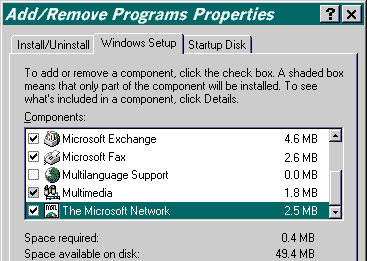
installed, and which ones can be removed. Are you using the Microsoft Network?
If not - and you have it installed - you can safe approx. 2.5MB. Microsoft Fax?
Going rate approx. 2.6MB. Microsoft Exchange? A whooping 4.6MB to be saved
here!
To uninstall Windows components:
- Open your Control Panel
(select Start > Settings > Control Panel)
- Open Add/Remove Programs
- Select the Windows Setup
tab
- Select the components you
want to remove and press OK
Deleting Temporary
Files
When Windows
crashes, or locks-up and you have to use Ctrl+Alt+
This sometimes
also happens when Installation routines of programs do not clean up (properly).
These files will
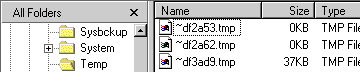
be left in your \Windows\Temp folder.
You can use Windows
Explorer to find and delete these files. To be on the safe side, do not
delete files with today's date, these files could still be in use (most
probably you will get an error telling you that a file cannot be deleted
because it is in use).
You can also
check your entire hard disk, to see if there are any temporary files in other
places:
- Open Windows Explorer, and select your drive (e.g. C:\)
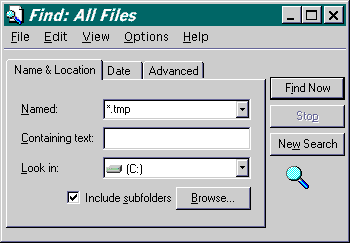
- Press F3, this will open Find
- In the Named: box on the Name & Location tab,
enter *.tmp
- Make sure that the check-box for Include subfolders is
checked
- Press Find Now
Deleting other files
Other files you
could delete are files with these extensions:
- .avi
- Movie file; if you know how to use Windows 95, do not keep these things
around (there could be - depending on the installation options chosen -
around 7MB of them in \Windows\Help). Make sure you
"watch" them before deleting them, because you might delete a
movie you wanted to keep.
- .bak
- Old file; when a new version of a program comes along, sometimes it will
rename the old version with an .bak extension. Be careful when removing
these files.
- .chk
- Scandisk backup file; if there are lost clusters found when you run Scandisk,
these files will be created. They will not come back, but new ones can be
created with future Scandisk uses.
- .cnt
- Help-related file; ever notice those tables of contents when you launch
certain Help files? If you do not need a table to help you navigate
through a Help file, delete these. They will not come back.
- .fts
- Help-related file; when you perform a search with a Help file, this is
created to make all future searches be performed quicker. E.G., not worth
having around unless you use Help files on a daily basis. They are
re-created if you do a search in a Help file, so these should be regularly
scanned for and deleted.
- .gid
- Help-related file; when you run a Help file, it creates a GID to
make future accesses to that particular help file a tad quicker. They are
a complete waste of space. You will have to delete these on a regular
basis, as they are recreated with every Help file execution.
- .grp
- Program Manager Group file; if you never use Program Manager (Win 3.*)
anymore, why keep these around? They will not come back, but an install
program could create new ones.
- .old
- Old file; see .bak.
- .tmp
- Temporary file; when you exit out of Windows without shutting down
everything, these files could be littering your hard drive (typically,
they can be found in the \Windows\Temp\ folder). Many programs have
temporary files to help speed up processes; they are a necessary evil. You
might find hundreds of these just waiting to be deleted.
- .~mp
- Temporary file; see .tmp.
- .$$$
- Old file; see .bak (usually, not always)
- .000
- Old file; see .bak
To delete these:
- Open Windows Explorer, and select your drive
(e.g. C:\)
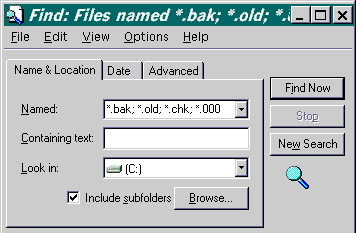
- Press F3, this will open Find
- In the Named: box on the Name &
Location tab, enter *.bak; *.old; *.chk; *.000 (and any others
you want)
- Make sure that the check-box for Include
subfolders is checked
- Press Find Now
To be on the safe side, delete your files to the Recycle Bin, and
leave them there for a week or two. If you don't run into any problems, you can
empty the Recycle Bin. If Windows or any program complains about a missing
file, just select your Recycle Bin, find the file and right-click on it. From
the context menu choose Restore. This will restore the file to its
original location.
Temporary Internet Files
Another source
of "disappearing" hard disk space is the Temporary Internet Files. To
speed up your Internet browsing, pages, graphics and other page elements are
stored in your browsers cache. It is worth it to clean this cache from time to
time:
Internet Explorer 4.x / 5.x
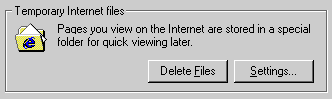
- From IE's menu, select View > Internet Options
- On the General
tab, press Delete Files
button under the Temporary
Internet files header
Note:
The Internet
Explorer 4 cache is seriously flawed. One of these flaws will result in the
growth of the Index.dat files, even if you delete your cache using the
method described above. Another flaw will sometimes have the effect that
although you wanted to delete all files, many files will be left in the IE4
cache. This bug typically manifests itself when you click on a link, before the
page you are on at that moment has fully loaded, or if you press the Stop
button. This prevents the entries for the files already downloaded to be
written to the Index.dat files, so these files will become "stray
files"; Internet Explorer's cache management doesn't know that they are
there!
To work around
this:
- (re)Start Windows is MS-DOS mode
- Start
- Type Deltree <your tif dir> where
<your tif dir> should be the path to your Temporary Internet Files.
The default is C:\Windows\Temporary Internet Files. You would have
to put quotation marks (" ") around this command, or use: C:\Windows\Tempor~1
- When done, restart Windows. Your Temporary
Internet Files directory will be re-created.
Netscape Communicator 4.x
1.
From
Netscape's menu select Edit > Preferences
2.
Click
on the + sign next to Advanced in the Category window
3.
Select
the Cache entry
4.
Press
the Clear Disk Cache button
Cookies
Another source
of "disappearing" hard disk space is the Cookie Files. To speed up
your Internet browsing, pages, graphics and other page elements are stored in
your browsers cache. It is worth it to clean the cookie from time to time:
Click on
1.
Start
2.
Run
3.
type
in COOKIES
4.
hit
OK
This will open
the cookie folder. You will not be able to delete the “index.dat” file but the others can be deleted. If you see the index.dat file highlight it by clicking once, then click
on edit then invert selection. This will highlight all except the index.dat and you then hit the delete
key and delete them all.
The cookie
folder will store passwords for internet site such as yahoo mail ebay and ect
so you may want to make sure you have your user names and passwords in the
event that they are no longer there the next time you return to a favorite web
site.
Disk Cleanup
1.
Click Start
2.
Programs
3.
Accessories
4.
System Tools
5.
Disk Clean up
6.
Click
OK on the drive you would like to
clean up
7.
When
the window pops up with a list of un-necessary files that can be cleaned from
the system. I suggest checking them all.
8.
hit
Ok